

Invite Users
Bring your team into Straion so everyone shares the same set of rules and stays aligned. As an admin, you can invite people by email and manage their invites and roles from the User Management page.
This page covers inviting people manually. Straion also supports automatic provisioning through SCIM, which lets you sync users and roles from your identity provider.
1. Open Invite Users
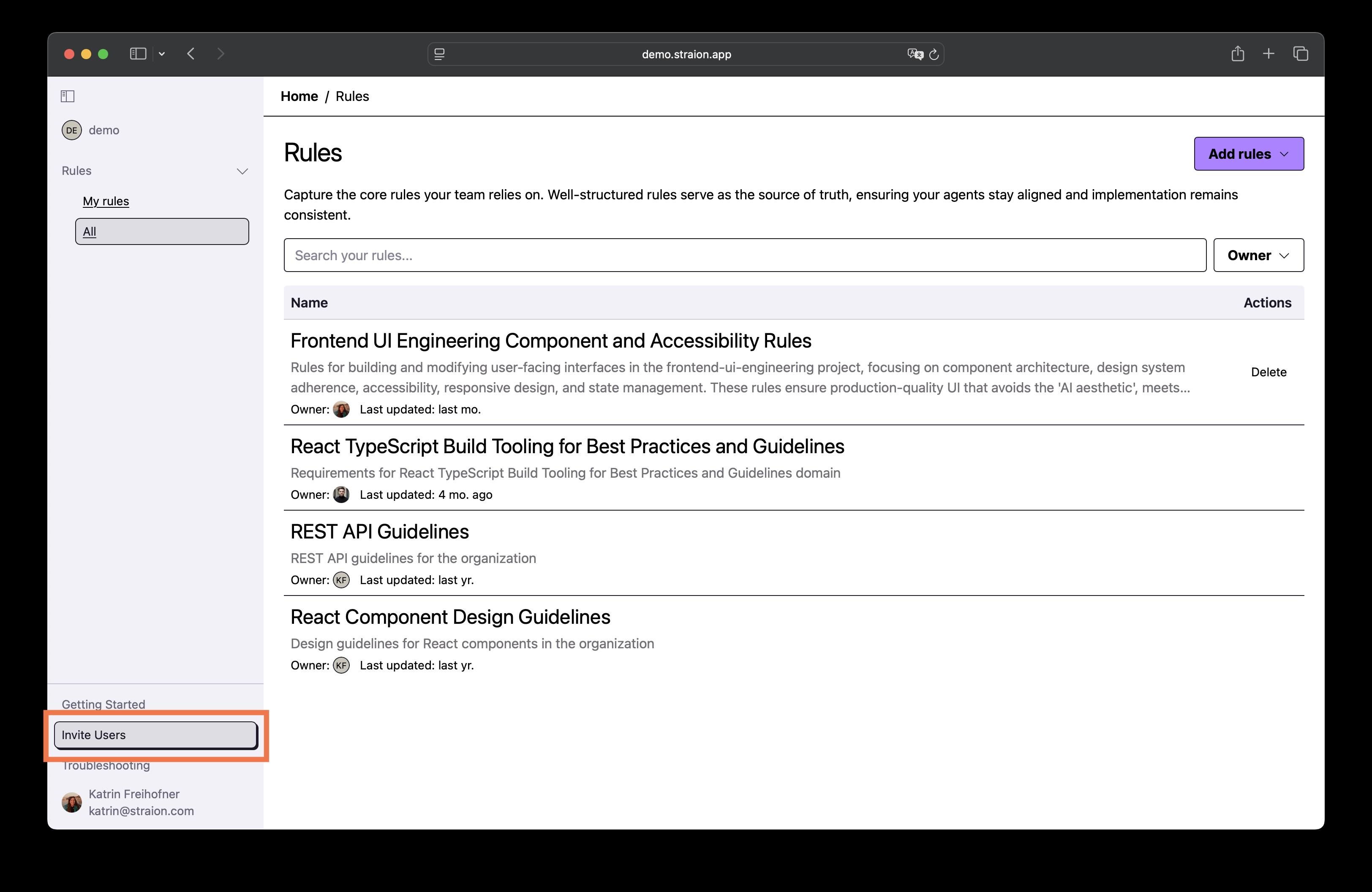
Section titled “1. Open Invite Users”From any page, click the Invite Users entry in the bottom-left navigation.
2. Add email addresses
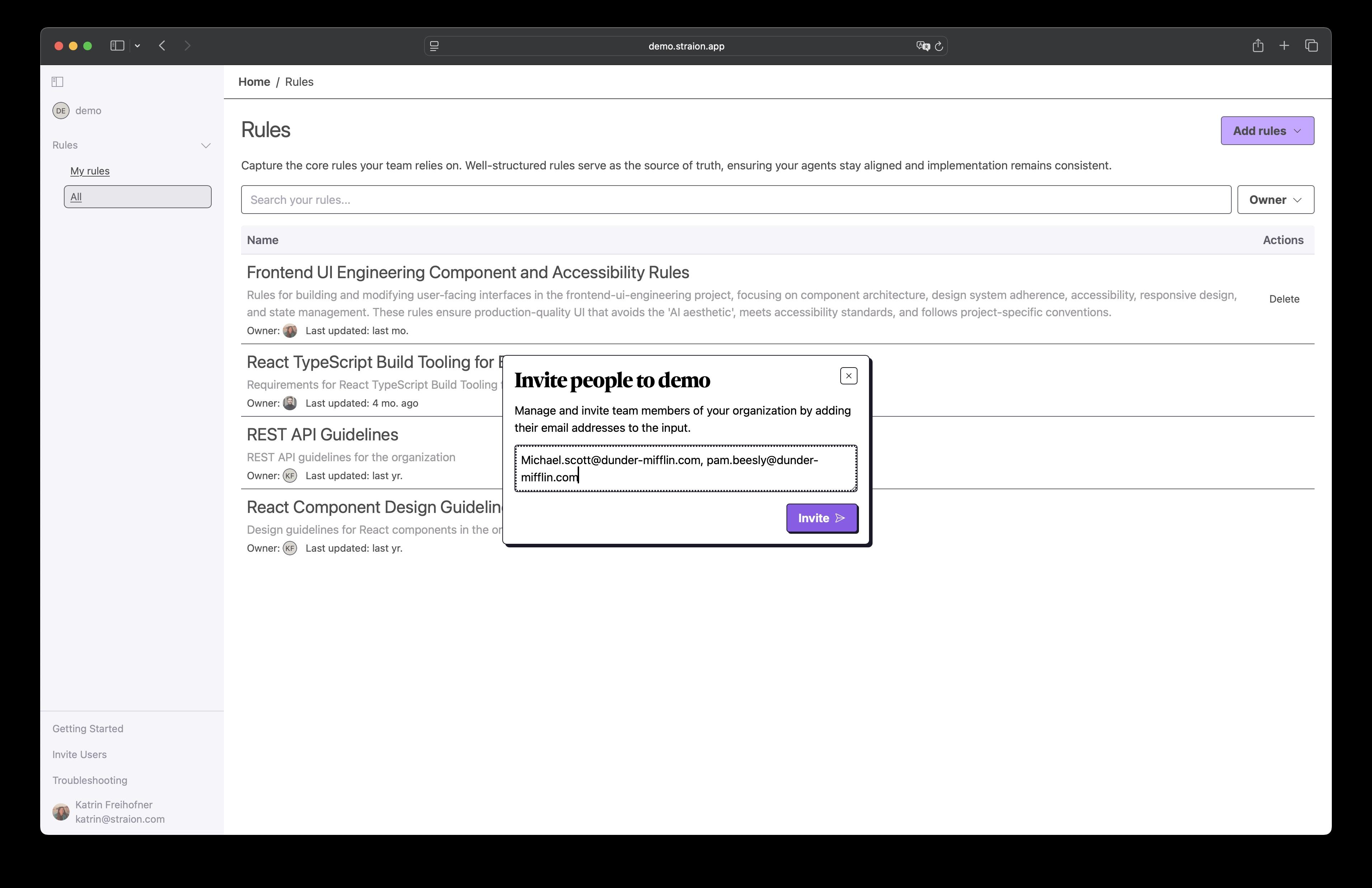
Section titled “2. Add email addresses”In the Invite people dialog, enter the email addresses of the people you want to invite. You can add several at once by separating them with commas, then click Invite.
3. Manage organization invites
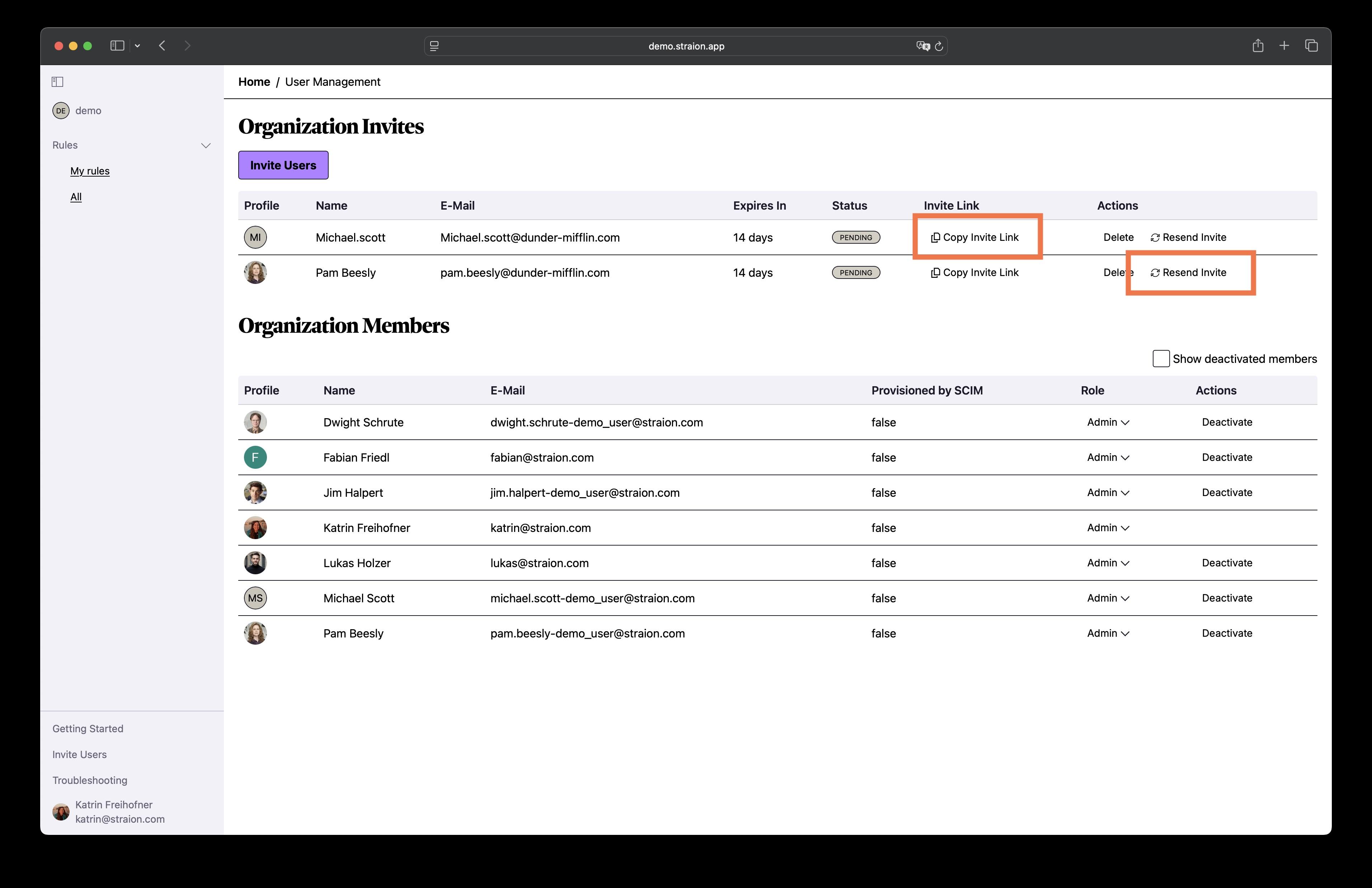
Section titled “3. Manage organization invites”Invited users appear under Organization Invites with a Pending status. Each invite is valid for 14 days. From the Actions column you can:
- Resend Invite — send the invitation email again, for example if it expired or was missed.
- Copy invite link — copy a direct link to your clipboard and share it with the invitee yourself.
- Delete — cancel a pending invite.
Members and roles
Section titled “Members and roles”Once an invite is accepted, the person moves into the Organization Members list, where you can manage their Role or Deactivate their access. Members provisioned through SCIM are flagged in the Provisioned by SCIM column.